
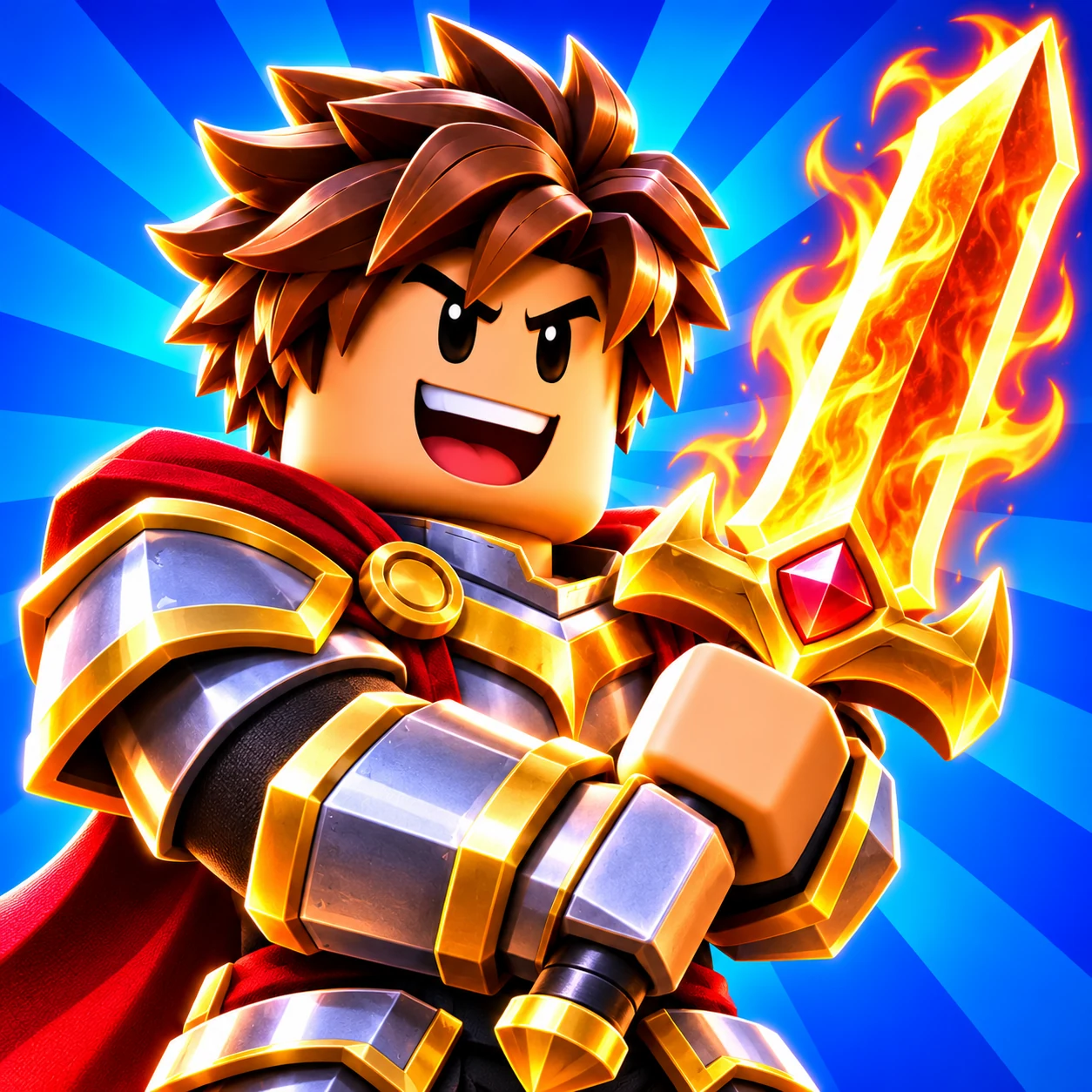
1:1 Game Icon1024×1024
Fantasy
Ember Knight
Fantasy · Game Icon
Prompt Recipe
Close-up centered 1:1 game icon of a smiling blocky armored knight raising a blazing orange fire sword against a vibrant royal-blue sunburst background.
Open an icon from your device, add an update badge, and check it at Discover size before downloading your square PNG.
Drop your icon here
PNG, JPEG, WebP · 12 MiB
0 credits · Images stay on your device
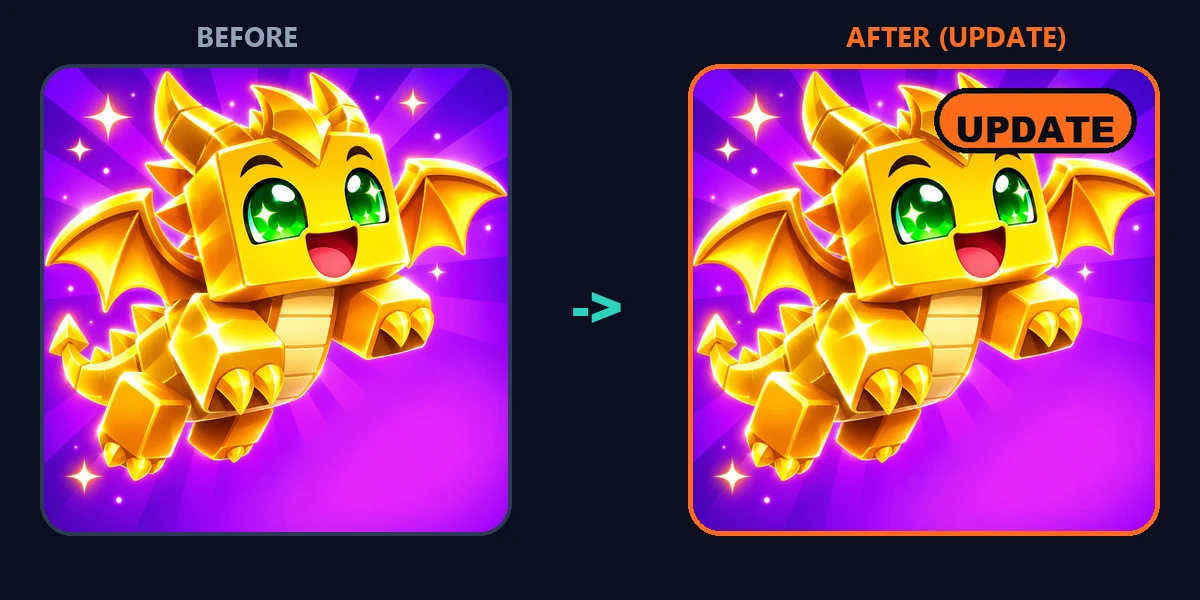
At 150 × 150 pixels in Discover, the orange UPDATE badge needs to read alongside the dragon’s face. The upper-right placement keeps its eyes clear, and the dark outline separates the badge from the purple background.
Generate a new base game icon →Fantasy · Game Icon
Close-up centered 1:1 game icon of a smiling blocky armored knight raising a blazing orange fire sword against a vibrant royal-blue sunburst background.
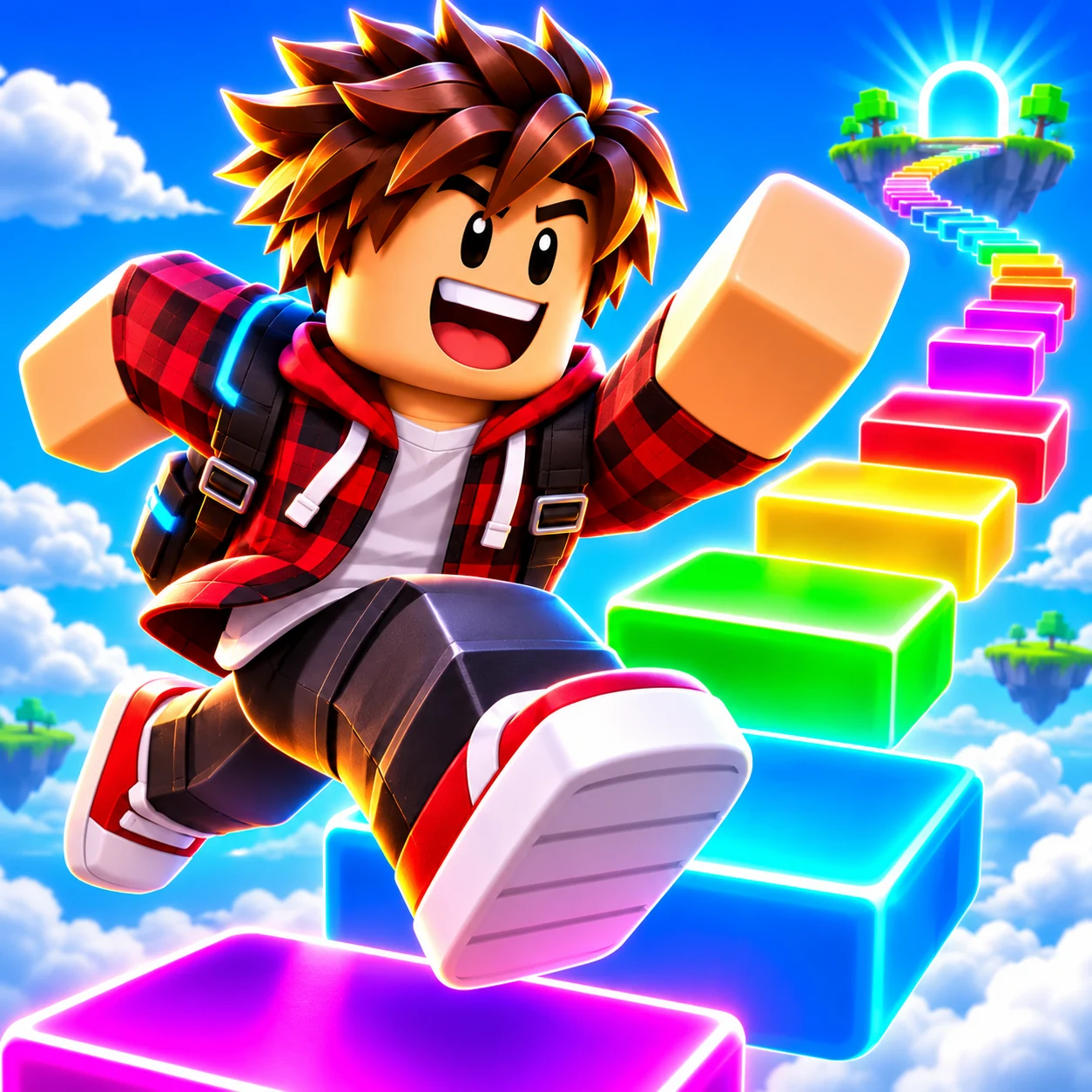
Obby · Game Icon
Smiling blocky runner mid-leap over glowing neon rainbow floating obby blocks high above fluffy white clouds against a vivid sky-blue background.
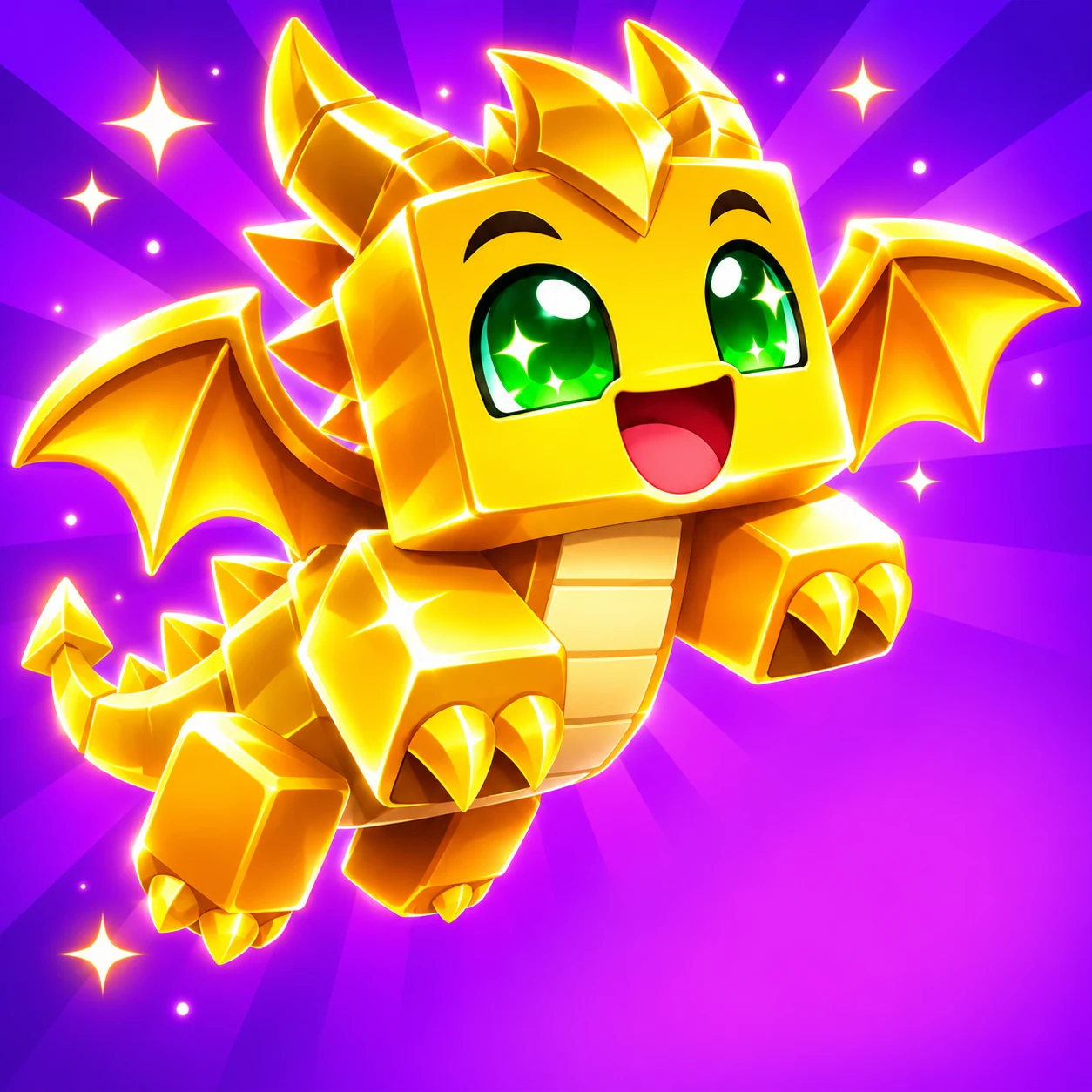
Pets · Game Icon
Cute shiny golden blocky dragon pet smiling with sparkling emerald eyes over a vibrant purple-to-magenta radial sunburst with glowing stars.
Start with an icon your players already recognize and choose a short badge for the update.
Check that the new badge stays readable without covering the main subject.
Review the composition at its final display size and export it from the workspace.
Use a square image of at least 512 × 512. Roblox may display the icon at 150 × 150, so check the silhouette and any lettering at that size.
Roblox Creator Hub icon guideUse one short label for the actual update or event. Give it a strong edge and leave room between it and the main subject.
Yes. Choose a local icon file from your device. The editor opens it in your browser so you can add a badge for your release.
The update icon editor runs locally. You can edit your icon and download the PNG without signing in or spending credits.
Look at the icon at 150 × 150. Check that the badge is legible and leaves the face, item, or other recognizable part of your icon visible.
Download a 1024 × 1024 PNG. Keep your original icon so you can restore it after a seasonal event.